
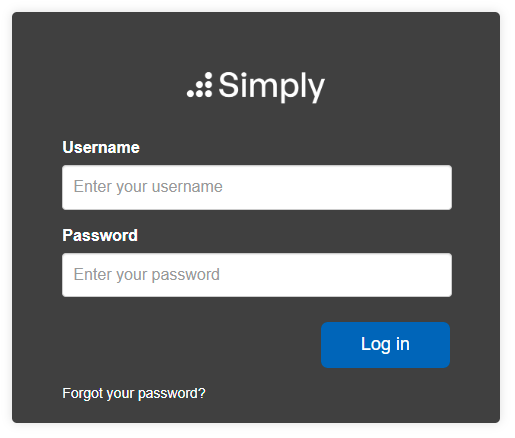
When you have forgotten your password there is a simple process to follow to reset it. From the Simply Navigate login page, select 'Forgot your password?' at the bottom of the screen:
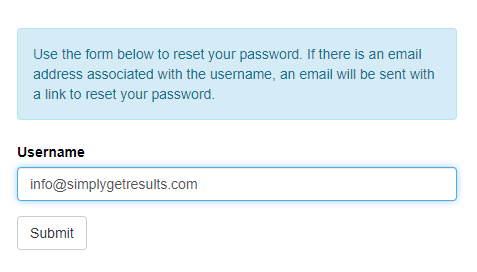
A new a screen will open. Enter your email address into the 'Username' box shown:
 This will generate a password reset email from 'helpdesk@simplygetresults.com'
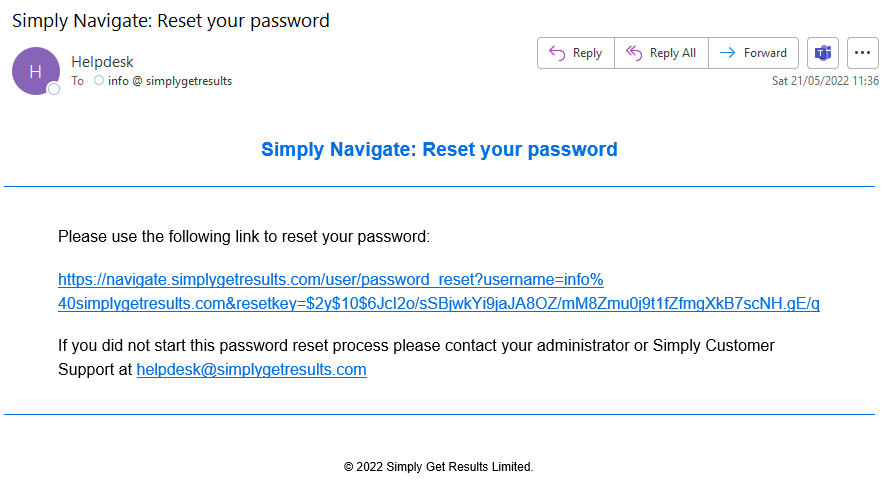
Click on the unique link contained within the email to open up the password reset screen. Enter your new preferred password:
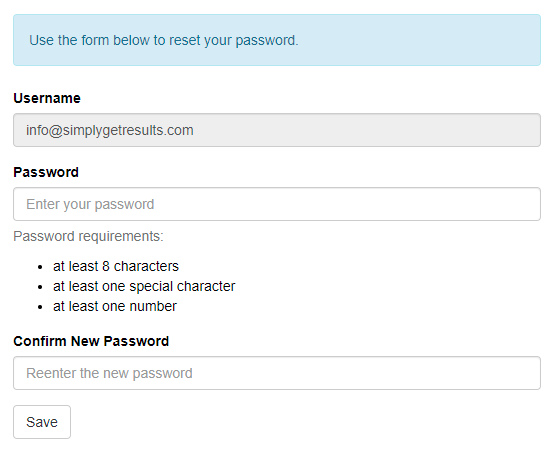
The new password will need to meet the password requirements of:
- Being at least 8 characters long
- Containing at least one special character: !"#$%&'()*+,-./:;<=>?@[\]^_`{|}~
- Containing at least one number
If you need help to generate a new password we recommend this site which helps create strong, unique passwords: https://passwordsgenerator.net/
Enter the exact same password again in the 'Confirm New Password' field, then hit save. If they do not match you will be prompted with a notification, inviting you to match the passwords:

Upon entering the same password, you will be notified that the password reset has worked and you will be able to access Simply Navigate.
If you need further assistance in resetting a password or accessing your account, please contact helpdesk@simplygetresults.com and one of the team will respond to you quickly.