There are several ways to search for roles within Simply Navigate. This article covers the use case of how to find a role and related information using the Role Framework view.
The Role Framework view is structured into three columns, showing Role Family, Role Cluster and Market Aligned Title. In the top right of the view you will see the 'Search Role Framework' control, which performs a free text search across the Role Family, Role Cluster and Market Aligned Title fields.
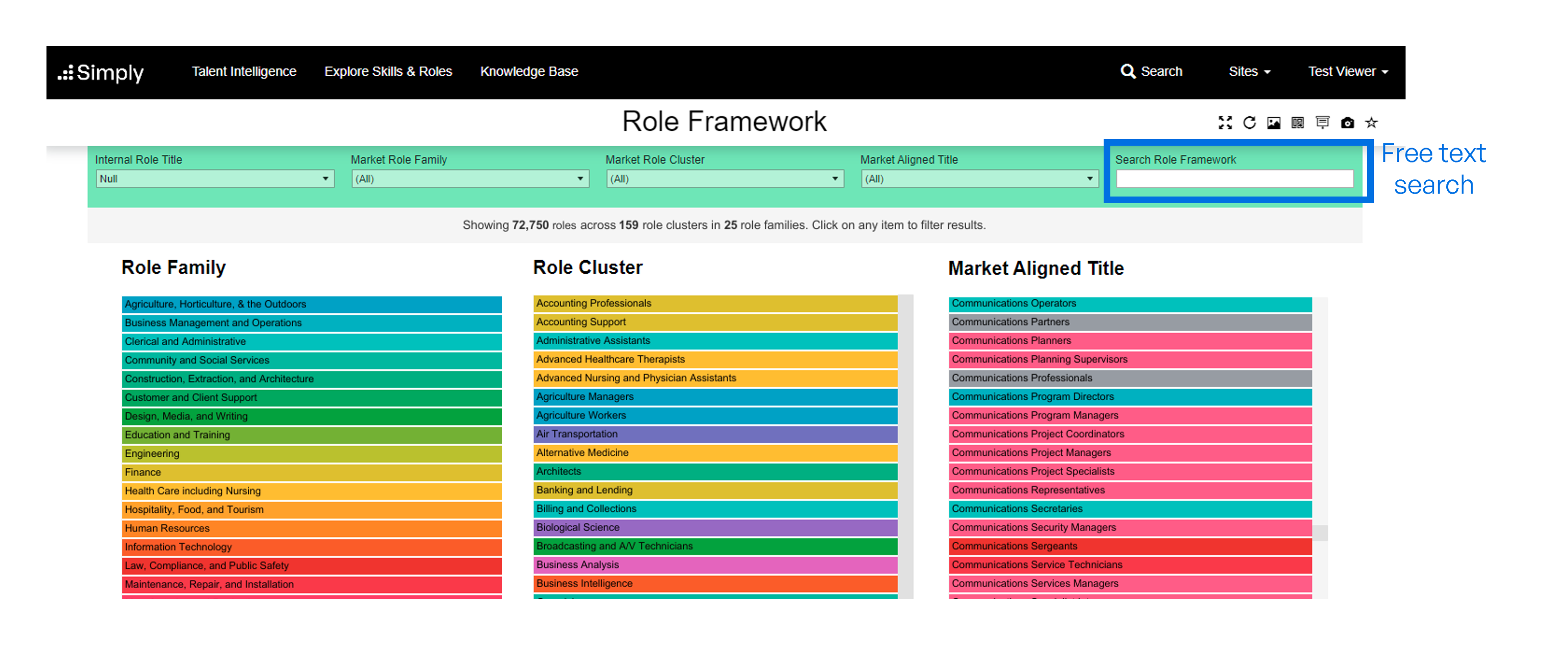
When entering a term into the 'Search Role Framework' search box, any Market Aligned Titles that contain that term, or are in a Role Family or Role Cluster that contain that term are displayed. This allows you to perform powerful searches, especially when combined with the pre-built filters in the green filter bar.
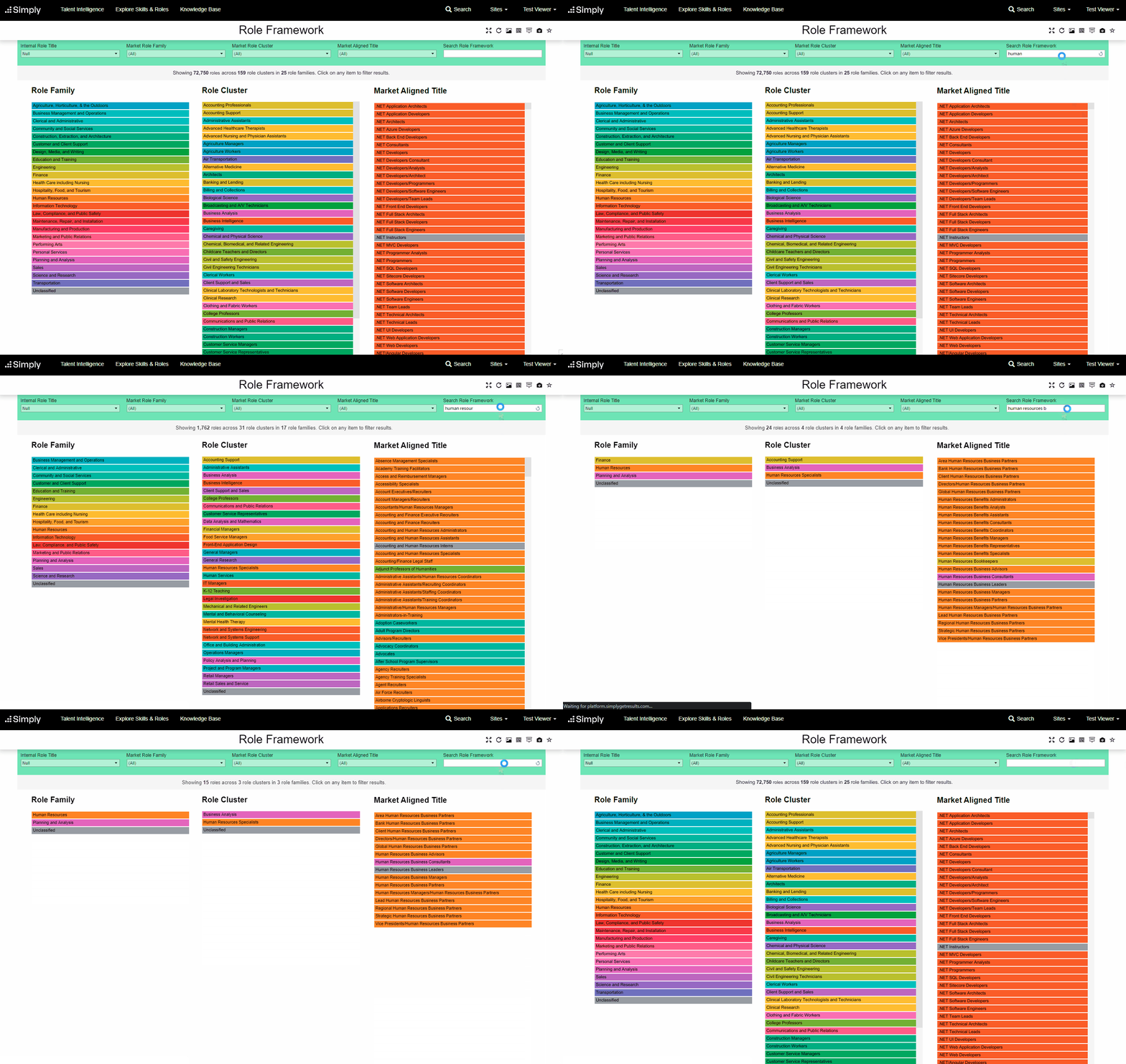
For example, in the below video we see how the field can be used to search:
- 'Human' - which shows results across multiple areas where 'Human' is part of the Market Aligned Title, Cluster or Family.
- 'Human Resour' - which shows results across multiple areas where 'Human Resour' is part of the Market Aligned Title, Cluster or Family.
- 'Human Resource B' - individual market aligned titles/ roles can be searched, even if you don't know the exact spelling or name. Entering the first few letters will return a smaller list of results. In this case, we demonstrate how you can narrow down your search using the previous results.
To reset back to the complete list, remove the search term from the 'Search Role Framework' box, and all results will be displayed. You can also click the 'Reset Filters' control ( ) to remove the search.