
There are three situations where you will need to reset your password:
- When you have access to your account already and wish to update the password
- When your password expires (Simply Navigate passwords are forced to reset every 90 days)
- When you have forgotten your password. This article covers this situation.
In situations 1 and 2, from within Simply Navigate, you can change your password at any time by clicking the ‘Change password’ option that appears when you hover over your username and following the guidance. You can find this in the top right-hand corner of the page:
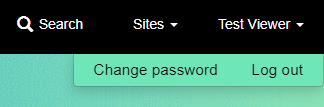
Selecting 'Change password' will open a new screen with instructions:
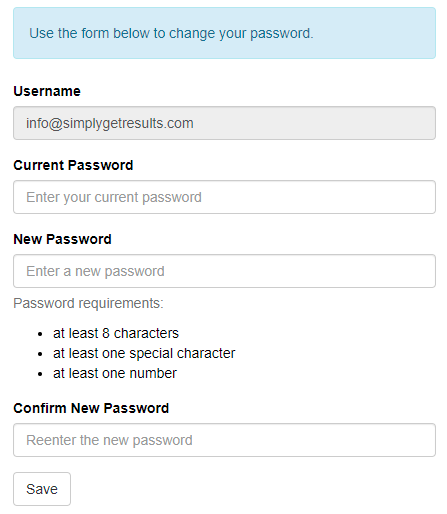
Enter your current password first, before adding a new password. The new password will need to meet the password requirements of:
- Being at least 8 characters long
- Containing at least one special character: !"#$%&'()*+,-./:;<=>?@[\]^_`{|}~
- Containing at least one number
If you need help to generate a new password we recommend this site which helps create strong, unique passwords: https://passwordsgenerator.net/
Enter the exact same password again in the 'Confirm New Password' field, then hit save. If they do not match you will be prompted with a notification, inviting you to match the passwords:

Upon entering the same password, you will be notified that the password reset has worked and you will be able to access Simply Navigate.
If you need further assistance in resetting a password or accessing your account, please contact helpdesk@simplygetresults.com and one of the team will respond to you quickly.